



Why Wireless Android Auto Drops Signal: 5 Engineering Fixes for Stable Connectivity
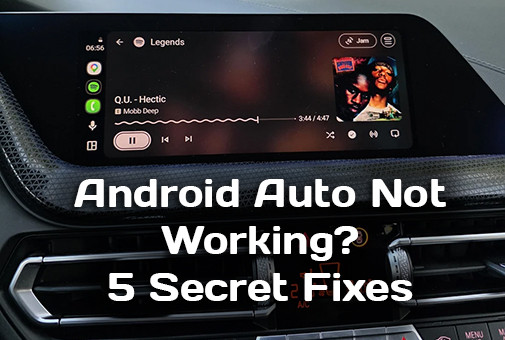
Wireless Android Auto not connecting or keeps dropping? In this ultimate expert guide, discover why connection failures happen and 5 proven fixes to solve them permanently.
Wireless Android Auto is a technology that fundamentally transforms your driving experience. Step into your car, start the engine, and within seconds, your familiar interface with navigation, music, and messaging apps automatically unfolds on the head unit screen. No tangled cables in cup holders and no unnecessary hassle.
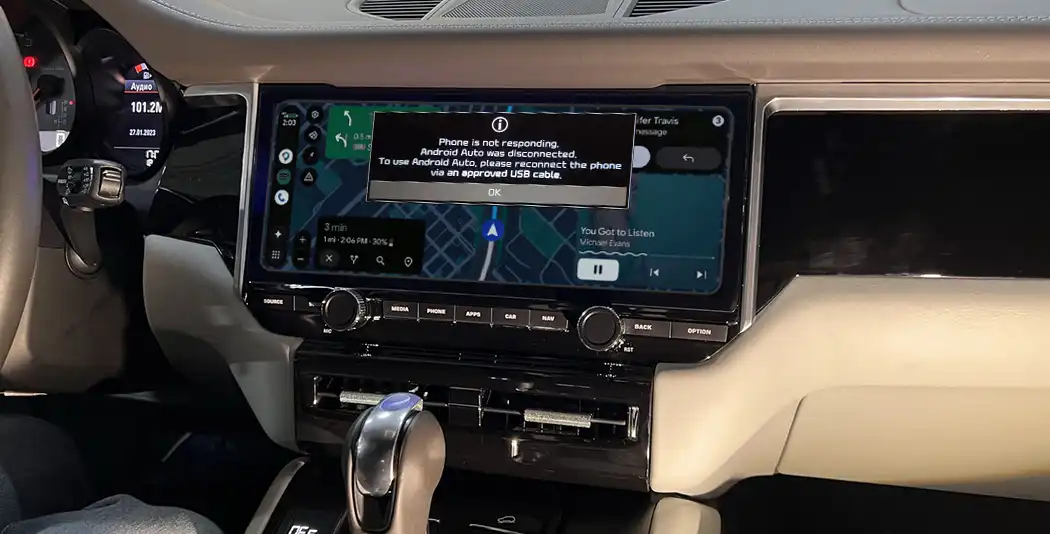
However, reality sometimes brings surprises: instead of a smooth launch, drivers face endless loading, a "Connection Timed Out" error, or random disconnections right in the middle of a busy route.
Over 15 years of working with automotive electronics and multimedia systems at SMARTY Trend, I have analyzed hundreds of similar cases. Most users immediately blame the smartphone itself or consider the technology unrefined. In practice, the root cause lies in the hardware limitations of budget head units or software conflicts within the phone's operating system.
In this detailed guide, we will break down the technical inner workings of wireless connectivity, identify the primary causes of failures, and provide a step-by-step algorithm to eliminate connection issues once and for all. By the way, if you are using the Apple ecosystem and facing similar issues, we also recommend checking out our comprehensive guide on troubleshooting wireless CarPlay disconnects.
1. How Wireless Android Auto Works Under the Hood (Technical Overview)
To effectively fix issues, it is essential to understand how wireless data transmission actually operates. Many mistakenly believe that Bluetooth handles the screen mirroring.
- The Role of Bluetooth: Bluetooth is used exclusively during the initial stage for the handshake and pairing process between the smartphone and the head unit.
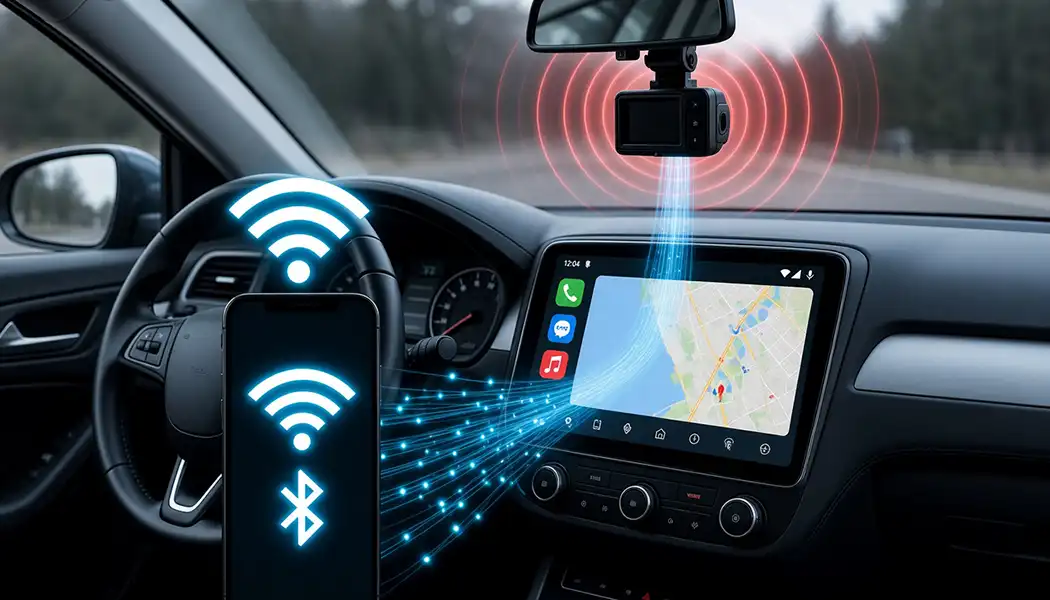
- The Role of Wi-Fi: Once pairing is complete, all heavy lifting - high-resolution video streaming, audio data transfer, and command processing - shifts to a local Wi-Fi channel (in the 5 GHz band) via the Wi-Fi Direct protocol.
Where is the main market trap?
Budget Android head units flooding online marketplaces are often equipped with outdated, cheap communication modules supporting only the 2.4 GHz band or weak dual-core processors.
- Overheating: Running heavy applications simultaneously (such as Google Maps with live traffic and streaming audio) causes a weak processor and cheap Wi-Fi chip to overheat. According to SMARTY Trend service department data, during the summer, up to 35% of spontaneous connection drops on head units without an active cooling fan are caused specifically by processor thermal throttling when temperatures inside the dashboard exceed +75°C.
- Throttling: To prevent physical damage, the chip drops its clock speed (throttling), data packets begin to drop, and the connection fails.
- Airwave Interference: The 2.4 GHz band is extremely congested (smartwatches, tire pressure sensors, dashcams, and nearby car networks all operate on it).
This is precisely why owners of premium-segment equipment (such as SMARTY Trend head units with massive cooling heatsinks and modern dual-band Wi-Fi adapters) never experience these stability issues.
2. Step-by-Step Troubleshooting Algorithm (Engineer's Checklist)
If wireless Android Auto has stopped connecting or keeps disconnecting, follow these actions in strict sequence. Do not skip steps - in 90% of cases, the issue resides at the smartphone software cache level.
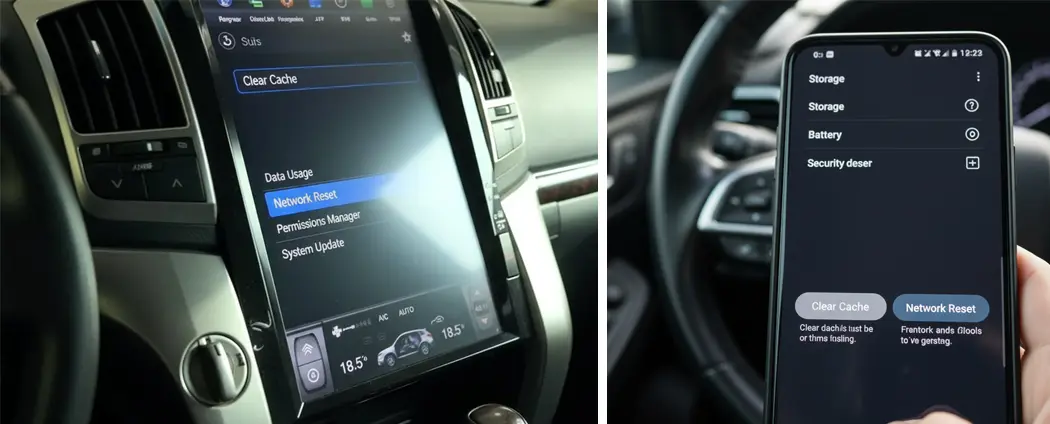
Step 1. Clear Phone App Cache
Temporary files of the Android Auto service and Google Play Services often get corrupted after OS security updates.
- Go to smartphone Settings → Apps → Android Auto.
- Select Force Stop.
- Open the Storage section and tap Clear Cache.
- Repeat the exact same procedure for the system app Google Play Services.
Step 2. Complete Reset of Bluetooth and Wi-Fi Pairings
A corrupted digital connection handshake between devices blocks automatic re-launch.
- Delete car connection info from your smartphone's Bluetooth menu.
- Access head unit settings, navigate to paired Bluetooth devices, and completely remove your phone.
- Reboot both devices (smartphone and head unit).
- Pair the devices again, making sure to allow access to contacts, call logs, and notifications when pop-ups appear on your phone screen.
Step 3. Tailored Battery Optimization Tweaks per Smartphone OS
Modern custom Android skins (Samsung One UI, Xiaomi HyperOS, Huawei EMUI) aggressively limit background processes. If the OS puts the Android Auto or Wi-Fi Direct module into sleep mode, the wireless projection drops instantly.
- Samsung (One UI): Go to Settings → Apps → Android Auto → Battery and set it to «Unrestricted». Then check Settings → Device Care → Battery → Background usage limits to ensure Android Auto is not in the "Deep sleeping apps" list.
- Xiaomi / Poco / Redmi (MIUI / HyperOS): Open Settings → Apps → Manage apps → Android Auto → Battery saver and select «No restrictions». In the app permissions menu, make sure to enable the «Autostart» toggle.
- Huawei / Honor (EMUI / MagicOS): Go to Settings → Apps → App launch, find Android Auto, disable "Manage automatically", and manually enable «Auto-launch», «Secondary launch», and «Run in background».
- Google Pixel / Motorola / Stock Android: Go to Settings → Apps → Android Auto → App battery usage and switch the profile to «Unrestricted».
Important Detail: On Xiaomi and Samsung smartphones, repeat this process for the system service Google Play Services, as it holds the primary network socket.
Step 4. Force Head Unit to 5 GHz Frequency
If your head unit supports dual-band Wi-Fi, ensure the hotspot operates on a stable frequency band.
- Enter head unit factory settings (requires a service passcode from your manufacturer; password for SMARTY Trend is 3368).
- Navigate to Network / Hotspot Settings (Wi-Fi / Hotspot Settings).
- Force the operating frequency band from 2.4 GHz to 5 GHz. This eliminates radio frequency interference in dense city traffic.
3. Hardware Comparison: Why "Cheap" Head Units Cause Frustration
| Evaluation Criterion | Budget Noname Head Units (Mass Market) | Premium Automotive Solutions (SMARTY Trend) |
|---|---|---|
| Wi-Fi Module | Single-band 2.4 GHz, highly susceptible to interference. | Reliable dual-band module supporting Wi-Fi Direct 5 GHz. |
| Cooling System | Missing or thin metal plate; chip overheats under load. | Massive passive aluminum heatsink, stable operation up to +85°C. |
| Auto-connection Speed | From 25 to 50 seconds (given a stable signal). | Instant auto-start in 5-10 seconds after turning on ignition. |
| Expert Verdict | A constant source of headaches and frustration on the road. | Install once - and completely forget about cables and glitches. |
4. Frequently Asked Questions (FAQ)
Q: Will updating my smartphone to a newer Android version resolve disconnections?
A: Not always. OS updates fix bugs on the phone side, but if the head unit hardware (weak Wi-Fi chip or board overheating) cannot physically handle data streaming, phone software is powerless. Start with clearing the cache, and if hardware glitches persist, consider upgrading to a higher-performance head unit.
Q: My head unit connects fine when I drive alone, but when my wife gets in, the connection drops or freezes. Why?
A: No mystery here. Your wife's smartphone also has a saved Bluetooth pairing with the head unit. When starting the engine, the head unit attempts to process two Wi-Fi Direct handshake requests simultaneously and loses stability. Simply turn off Bluetooth temporarily on the second smartphone in the cabin before driving.
Q: What if the wireless mode remains unstable and I need to drive immediately?
A: Use a reliable wired connection. A physical USB port completely eliminates radio frequency interference. Make sure to use a high-quality certified cable (preferably USB 3.0 or Type-C supporting high-speed data transfer), rather than cheap charging cords.
Conclusion
Wireless technologies should deliver comfort, not cause stress at every traffic light. If basic software steps (clearing cache, resetting pairings, battery optimization) yield no results and disconnections recur trip after trip - the issue stems from hardware limitations of your multimedia system.
For those who value their time and comfort, upgrading to professional-grade modern equipment is the right solution. SMARTY Trend specialists are always ready to help you select the ideal head unit system with powerful hardware engineered for your specific vehicle make and model.
Want to forget connection problems forever?
Explore the current catalog of SMARTY Trend head units for your vehicle make or contact our engineers for professional selection.
Find SMARTY Trend Head Unit
Why Wireless CarPlay Keeps Disconnecting (And the Real Fix)
Top Mistakes When Choosing and Buying an Android Car Stereo:...
Apple CarPlay Ultra and Android Head Units: Why You Can't Retrofit...
CarPlay vs Android Auto in 2026: Which One to Choose For Your Phone...
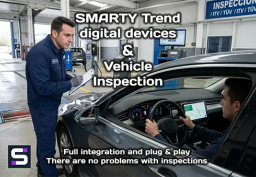
Does installing an Android screen or digital dash affect the MOT?
 EN
EN DE
DE
 ES
ES
 FR
FR
 IT
IT
 NL
NL
 PL
PL
 PT
PT
 RU
RU