



Android Head Units on UIS 7870 FAQ: Service Codes, Settings, and Troubleshooting
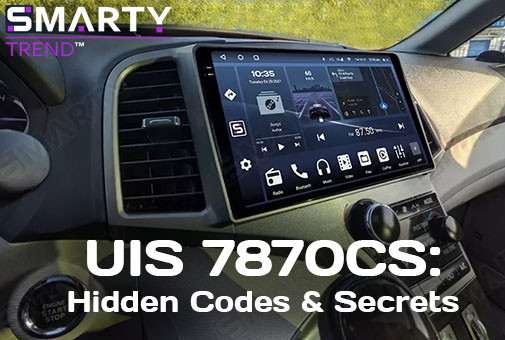
I would like to share with you a knowledge base founded on our years of hands-on experience. In this article, SMARTY Trend technical specialists answer the most frequently asked questions regarding the setup and maintenance of Android head units powered by the popular UIS 7870 processor with a 2K display.
Quick Summary
A guide to setting up and maintaining Android head units powered by the UIS 7870 processor. Covers factory service codes (3368, 5768, 7870), the battery drain prevention algorithm via sleep mode (Dormancy), precise matrix backlight adjustment methods, 360-degree surround view activation, RCA/Type-C video output troubleshooting, and cooling fan management.
Quick Troubleshooting Summary Table:
| Category / Task | Service Code / Menu | Head Unit Settings Path | Quick Solution / Command |
| Factory Settings | 3368 |
Settings → Factory | Access system parameters |
| Engineer Menu | )83781(= |
Calculator App | Enter combination in calculator |
| Developer Mode | 3368 or 7870 |
Settings → Developer menu | USB debugging and deep settings |
| Matrix Backlight | 5768 |
Factory (3368) → Backlight adjust | Reduce minimum brightness threshold |
| Sleep Mode (Battery) | - | Factory → Sleep mode settings | Set status to Dormancy |
| Screen Shutdown Delay | - | General → Set poweroff delay | Select interval (3 sec to 15 min) |
| Startup Volume | - | Settings → Sound → Default volume switch | Set level in Default boot submenu |
| 360 Camera (Activation) | 3368 |
Factory → Switch backcar camera | Select Inner 360 instead of Default |
| 360 on Turn Signal | - | 360 Settings → Car set | Parameter Trigger when turn → Off |
| Black Screen Without Camera | - | Factory → Local radar switch | Uncheck (disable radar) |
| Floating Button | - | All Apps Menu | Disable Touch Assistant utility |
| Video Output to Monitors | - | Settings → Video Out | Cable Type-C - HDMI (RCA is inactive) |
| Fan Power | - | Equalizer App | Enable toggle Amplifier / Subwoofer |
How to Remove the Floating Button from the Screen?
When using an Android head unit powered by a 2.7 GHz processor (UIS 7870SC), the floating quick-access button may remain active on top of running apps, blocking UI elements or distracting the driver during navigation and media playback.
Solution:
To successfully remove this button from the display of your UIS 7870SC head unit, follow these setup steps:
How to Connect a Rearview Camera?
Vehicles equipped with a factory rearview camera come with the necessary adapter included, but in some cases, the OEM camera is not supported and requires replacement.
Also, many budget cars do not come with a factory camera, even though this accessory is essential for safe parking.
Solution:
For successful connection, configuration, and troubleshooting of the rearview camera on your Android head unit, please follow the detailed instructions in our guide.
Please note: if the rearview camera image is constantly black-and-white, skewed, or flickering, make sure the camera ground wire is securely fastened to a clean metal grounding point on the car body to eliminate signal noise.
Also, check the head unit settings and select the correct video standard (AHD / NTSC / PAL) and resolution matching your camera equipment.
How to Connect and Learn Steering Wheel Controls (SWC)?
Drawing on our years of experience installing Android devices, steering wheel buttons come in two types: analog resistive (KEY1/KEY2) or digital, communicating via the vehicle's CAN bus.
Solution:
- Protocol and Factory Settings Check: Before programming individual buttons, make sure your car's digital data bus is working correctly. Go to «Factory Settings» → «Car Selection» (or «CAN Bus Settings») and select the specific manufacturer and model of your vehicle (along with the appropriate protocol decoder such as Raise, Simple Soft, or Hiworld). The system will apply the correct digital commands.
- Accessing Steering Wheel Learning: Open the main menu on the head unit, go to «Settings» → «Car Settings», and select the «Steering Wheel Learning» (or SWC) app designed for the UIS7870SC platform.
- Clearing Previous Memory: Press the «Reset» or «Clear» button to remove old calibration profiles.
- Programming Physical Buttons: Press and hold a physical button on the steering wheel (e.g., volume up), then tap the corresponding icon on the head unit screen. Hold the button firmly until the system registers and highlights the command.
- Saving and Verification: Repeat the pairing procedure for all other steering wheel controls sequentially, then click «Save».
Turning Off the Head Unit with the Power Button
Based on practice, the head unit does not turn off completely when pressing the front panel button. Pressing it simply turns off the screen backlight (similar to pressing the screen lock button on a smartphone). In this mode, the head unit continues to draw about 1A and can completely drain your battery by morning.
The operational logic of all head units is as follows: the unit constantly receives power on the yellow wire (+12V BATT) and black wire (GND). When +12V is supplied to the red wire (ACC), the head unit turns on; when voltage is removed, it turns off.
If you want to turn the head unit on and off independently of the ignition key, you must install a physical switch in the break of the ACC wire.
P.S. Modern vehicles can continue to supply voltage to accessories for another 5–30 minutes after turning off the ACC signal (until you open the door or lock the car). However, the head unit's algorithm remains the same: the car's CAN bus applies or removes voltage from the ACC wire.
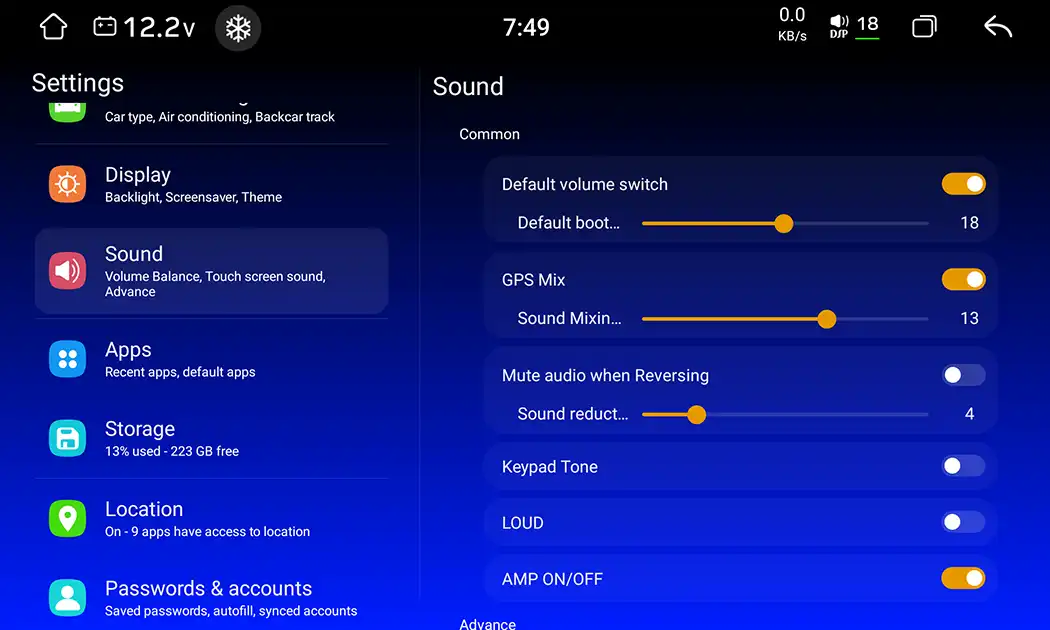
Music Plays Too Loudly at Startup, How to Fix?
Sometimes users contact our service with an issue where every time the device powers on, music plays at a high volume regardless of the volume level set before turning it off.
Solution:
This parameter is changed in the head unit settings:
Settings → Sound → Default volume switch
Does My Device Support 360 Cameras?
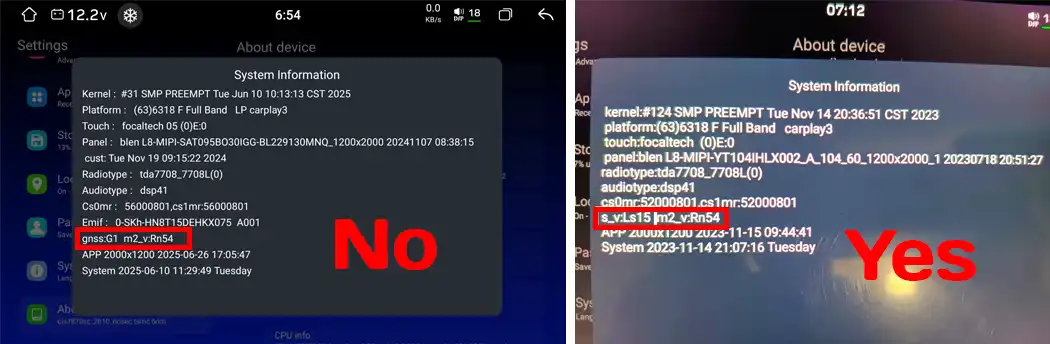
This feature is not available on all units. In most cases, it is provided as an optional feature upon customer request if they purchase a head unit with 360 cameras or state their intention to use them in the future.
You can check for the presence of the 360 module on an already acquired device in the menu:
Settings → About device → System Information
You can enable or disable the 360 camera function in the settings:
Settings → Factory → Switch backcar camera
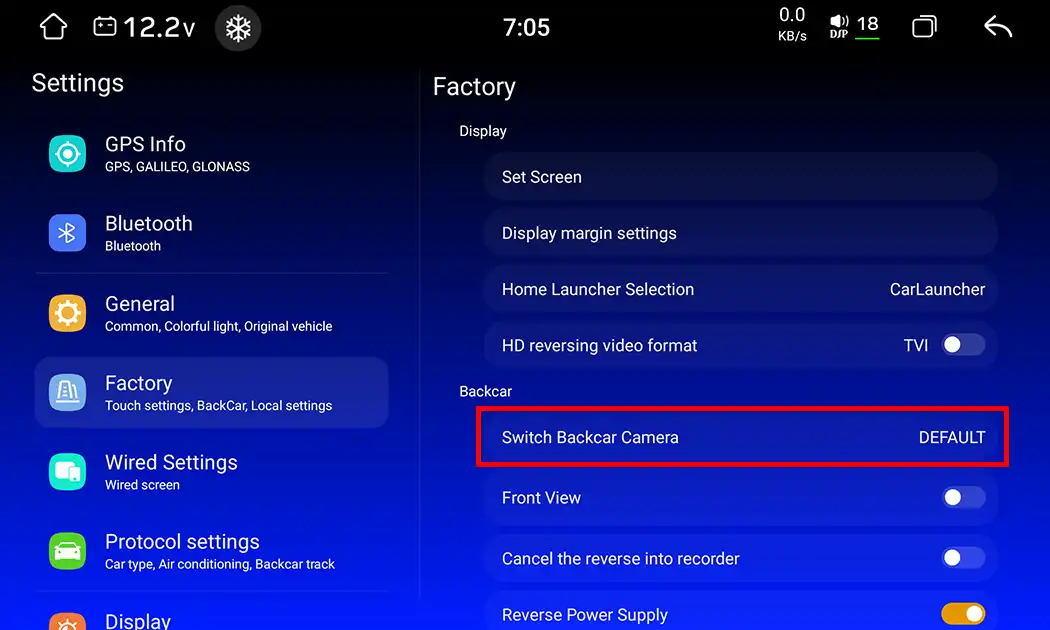
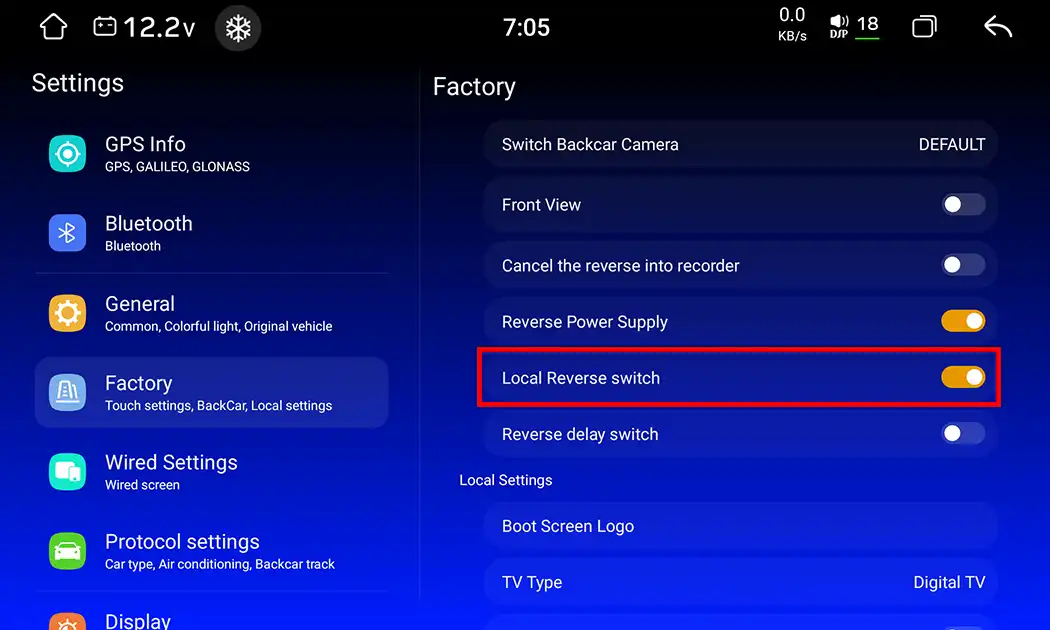
If a rearview camera is not installed and a black screen appears when shifting into reverse, disable the radar:
Settings → Factory → Local Reverse Switch
Reducing Display Brightness
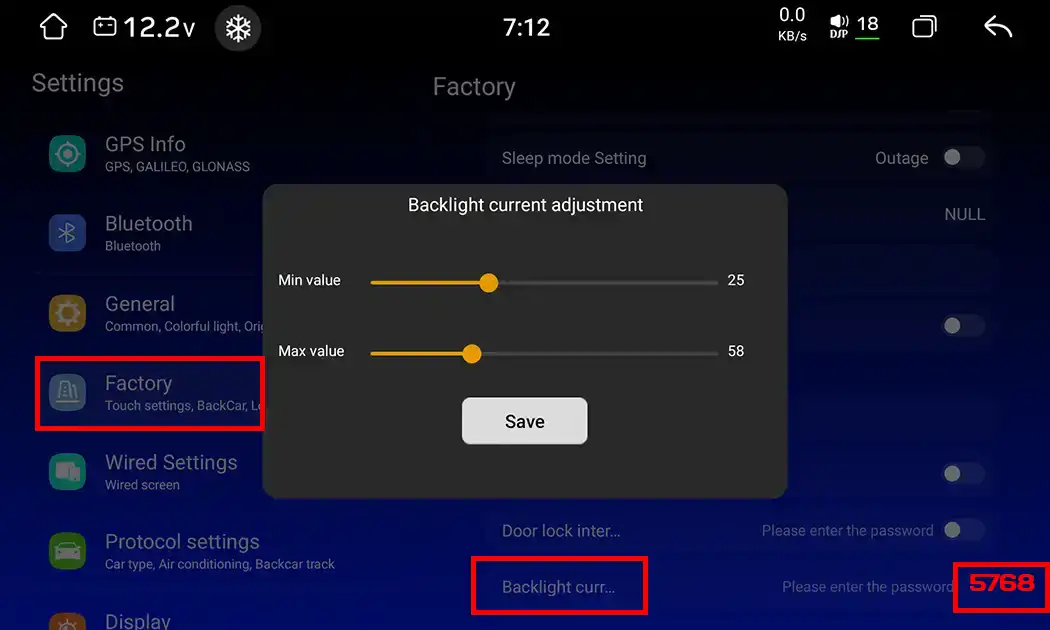
Having installed head units for over 15 years, we regularly receive feedback from motorists. One of the frequent requests is insufficient screen dimming at night, which can glare and distract the driver on the road.
Solution:
Settings → Factory → Backlight current adjustment
Set the minimum brightness threshold. Be careful! Setting it too low can completely disable the backlight or cause matrix flickering.
Connecting an Additional Monitor to RCA Video Out
These head units do not feature direct video output via RCA. Video can be output via a Type-C to HDMI cable (after activating the video output function in the settings).
You can also output video to external monitors using a specialized adapter USB-CVBS to RCA Interface Cable Adapter.
Turning On the Cooling Fan
You can select fan operating modes and activation conditions in the system settings.
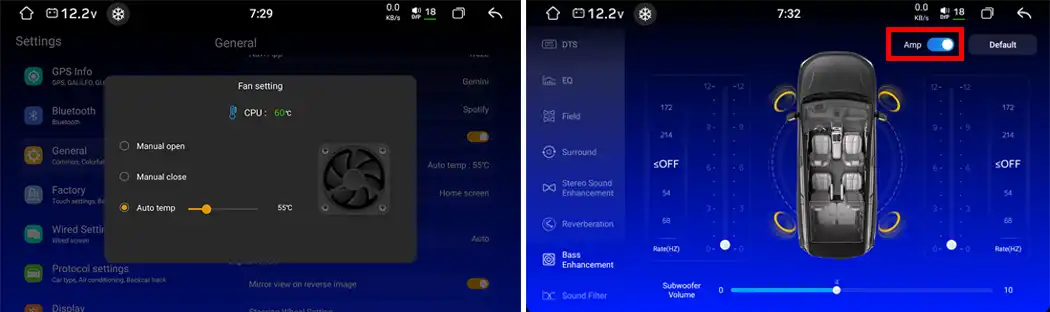
If the fan is enabled in the settings but does not spin physically, the fan power wire may be tied together with the subwoofer/amplifier power supply. In this case, open the Equalizer app, go to the «Low Frequencies» section, and turn on the amplifier toggle.
Proper Setup: The Key to Long Head Unit Lifespan
The UIS 7870 platform with a 2K display is one of the most powerful and functional solutions for automotive multimedia today. However, unlocking the full potential of the device and avoiding battery drain issues or peripheral setup troubles is only possible with proper initial configuration and smart use of service codes.
If you couldn't find the answer to your question in this knowledge base or need help choosing the right head unit and accessories for your vehicle, SMARTY Trend specialists are always ready to consult you and assist with configuration.
Will an Android Head Unit Fit Your Car? Complete DIN Size, Dash Kit...
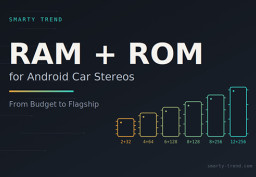
How to Choose RAM and ROM for an Android Car Stereo: 4+64, 6+128,...
How to Set Up DSP Sound on Your Android Head Unit

Android Head Unit Processors Guide 2026: Snapdragon vs. UIS Full...
Does installing an Android screen or digital dash affect the MOT?
 EN
EN DE
DE
 ES
ES
 FR
FR
 IT
IT
 NL
NL
 PL
PL
 PT
PT
 RU
RU