



CarPlay and Android Auto Wi-Fi Lag: Causes and Solutions
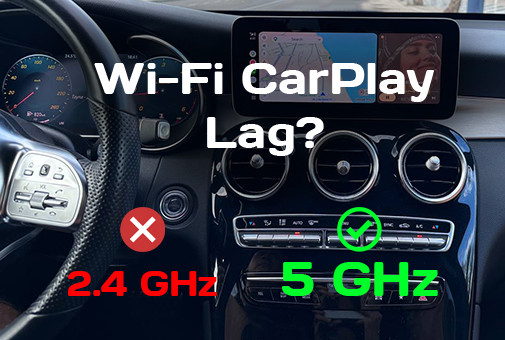
Video and interface lag during a wireless connection due to the chain: "encoding on the smartphone → transmission via Wi-Fi → buffering and decoding in the head unit". A delay of up to 250-300 ms is considered comfortable; anything higher requires optimization. In most cases, lag is resolved by three actions: switching the connection to 5 GHz, checking the antenna, and isolating the causes (communication channel, app, or head unit performance) using tests.
Why Video Lags During Wireless Connection to an Android Head Unit (CarPlay/AirPlay and Android Auto) and How to Fix It
Quick Reference
A guide for owners of Android head units (HUs) with wireless Apple CarPlay (commonly referred to as AirPlay), wireless Android Auto, and screen mirroring. We break down where the delay comes from, why 2.4 GHz is a problematic range in the car interior, how an external antenna affects smoothness, how local video differs from streaming, and why the result depends on hardware quality. Inside: a "symptom → cause → solution" table, a DIY latency test, and step-by-step diagnostics.
An article about lags and image stuttering. If your connection keeps dropping, check out our separate guides: why wireless CarPlay disconnects and why wireless Android Auto drops signal. Updated: October 21, 2026.
Important: Watching videos while driving is dangerous and illegal in many countries. Conduct all video tests from this article while parked with the parking brake engaged.
Summary Table: Symptom → Cause → Solution
| Symptom | Likely Cause | What to Do | Section |
|---|---|---|---|
| Choppy image, normal audio | Congested airwaves, operating on 2.4 GHz | Switch connection to 5 GHz, remove interference sources | Cause 1 |
| Wi-Fi lags present, USB cable has none | Radio channel issue: band, antenna, communication module | Check antenna, frequency band, phone placement | Cause 2 |
| Lagging on both cable and Wi-Fi | Insufficient head unit performance or overloaded with background apps | Update firmware, close background apps, check cooling | Verdict |
| Online video buffers, local file plays smoothly | Weak mobile internet or app limitations | Preload (offline), check network, try another source | Cause 3 |
| Audio is ahead of the video or delayed | Mismatched video/audio buffering, overloaded channel | 5 GHz, software update, restart connection | Diagnostics |
| Lags appear after 10-20 minutes of driving | Smartphone or head unit overheating, power saving mode | Remove phone from wireless charger and direct sunlight, disable power saving | Diagnostics |
| Lags in city centers, parking lots, near malls | Environmental radio interference | 5 GHz, channel change, different phone position | Cause 1 |
Where the Delay Comes From: A Four-Stage Chain
During a wireless connection, the head unit does not display its own app, but rather an image that the smartphone renders, compresses, and sends over the air. Each stage adds its share of delay, and the total lag is their sum. The weakest link determines the smoothness of the entire system.
| Stage | Where It Occurs | What Increases Delay |
|---|---|---|
| 1. Capture and Encoding | Smartphone | Overheating, power saving mode, weak processor, background load |
| 2. Wi-Fi Transmission | Radio channel between phone and head unit | 2.4 GHz band, interference, distance, obstacles, weak or missing antenna |
| 3. Reception, Buffering, Decoding | Head unit | Weak processor and decoder, lack of RAM, outdated firmware, overheating |
| 4. Return Touch Channel | Head unit → smartphone | Same causes: communication channel and head unit load. Causes touch response to drag |
What Delay is Normal and How to Measure It?
Benchmark: up to 250-300 milliseconds. The interface and video are perceived as smooth. Anything higher is noticeable in touch response and audio-video sync, requiring optimization.
You can measure delay without special equipment, using just a second smartphone with slow-motion video recording (120 or 240 fps):
Test 1. Touch Response (CarPlay, Android Auto)
- Turn on slow-motion recording on the second phone and aim the lens at the head unit screen so both the screen and your finger are in the frame.
- Tap an icon that gives an instant reaction (such as switching tabs in navigation).
- Find the exact frame of the tap and the frame when the screen reacted. Count the frames between them.
- Delay (ms) = number of frames × (1000 ÷ shooting frequency). Example: 60 frames at 240 fps ≈ 250 ms.
Test 2. Picture Desync (Screen Mirroring)
- Launch a stopwatch with milliseconds on your smartphone and start screen mirroring to the head unit (while parked).
- Record both the smartphone and the head unit screen simultaneously with the second phone in slow-motion.
- The difference in stopwatch readings between the two screens in a single frame is the transmission delay.
Repeat the test after each setting adjustment to see which action actually helped.
Cause 1. Wi-Fi Band: Why 2.4 GHz is Jammed with Interference in the Cabin, and 5 GHz Solves the Problem
A video stream requires a stable channel with bandwidth headroom. The 2.4 GHz band in a car is overcrowded: Bluetooth, smartphone hotspots, Wi-Fi dashcams, and numerous surrounding networks (especially in cities) operate on it. There are only three non-overlapping channels in this band (1, 6, and 11), leaving no room for maneuver. The 5 GHz band is wider, has significantly more channels, and is much less congested. Its lower penetration through walls is sufficient for a small car cabin.
| Parameter | 2.4 GHz | 5 GHz |
|---|---|---|
| Number of non-overlapping channels | 3 (1, 6, 11) | Significantly more |
| Congestion in car and city | High: Bluetooth, hotspots, dashcams, neighboring networks | Lower |
| Range and obstacle penetration | Higher | Lower (not critical for a car cabin) |
| Impact on video delay | Frequent packet retransmissions, stutter and desync | More stable stream and fewer retransmissions |
Wireless Android Auto requires 5 GHz on both the smartphone and head unit sides, with data transmitted via Wi-Fi Direct. Wireless CarPlay uses Bluetooth for discovery and Wi-Fi for image/audio transmission. Therefore, if your phone or head unit communication module only operates on 2.4 GHz, smooth video should not be expected.
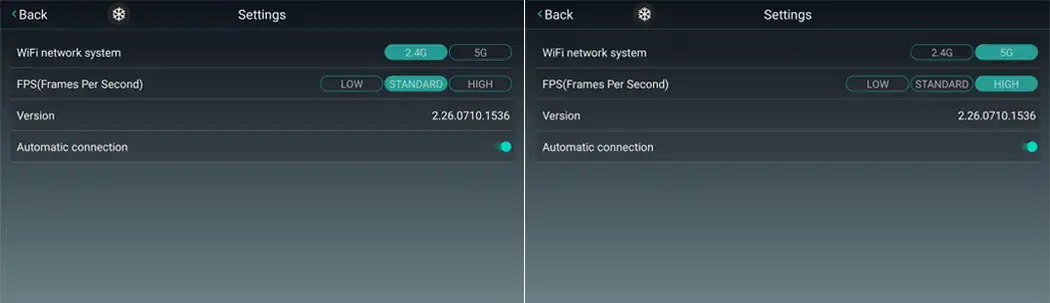
What to do: Make sure your smartphone supports 5 GHz and select the 5 GHz band in the head unit wireless module settings (if available). Disable your personal hotspot on your smartphone and remove unnecessary Wi-Fi devices from the cabin: dashcams in hotspot mode, extra hotspots. USB 3.0 hubs and low-quality cables near the communication module can also cause interference in the 2.4 GHz band.
Cause 2. Antenna and Installation Errors
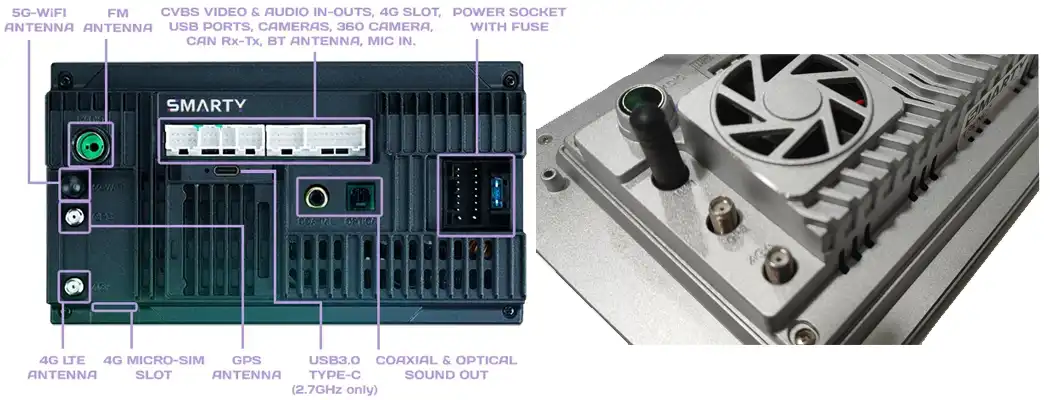
The head unit's radio module, hidden behind the metal dashboard panel, acts like a receiver inside a "Faraday cage." This is why many head units come with an external Wi-Fi/Bluetooth antenna. If it is forgotten, damaged, or hidden behind metal, connection quality drops, and the channel has to be "pulled through" via retransmissions, resulting in lags.
Check the installation (if an external antenna is provided for your model):
- Antenna is connected. The connector is tightly seated in the communication module socket. This is the most common DIY installation mistake.
- Undamaged. No cracks or pinching on the antenna wiring.
- Antenna routed out from behind metal. Secure it in a plastic zone, away from the metal frame and power wires.
- Cable is not coiled into a loop. Do not wind excess length into a coil near the module: it degrades reception.
- Phone is kept close. Do not hide it in a cup holder behind a metal console, trunk, or glove box.
Cause 3. Application Features: Local File or Streaming
Not every "lag" is related to Wi-Fi between the phone and the head unit. During streaming, the smartphone itself receives video from the internet via mobile data, then recodes and sends it to the head unit. If the mobile signal is weak, buffering occurs even before Wi-Fi, making the head unit look at fault. For a local file, no network is needed, immediately revealing where the problem lies.
| Scenario | Channel Load | What to Check |
|---|---|---|
| Local file on smartphone | Only Wi-Fi between phone and head unit | Band, antenna, head unit performance |
| Mobile internet streaming | Mobile network + Wi-Fi + recoding | Network signal level, data plan, preloading, stream quality |
| Screen mirroring | Constant video stream of the entire screen | 5 GHz, smartphone heating, head unit decoder |
Practical test: While parked, play the same video from the phone's internal storage and online. If the local file plays smoothly while online video does not, the issue is with the mobile network or app, not the head unit. If both lag, proceed to channel and performance diagnostics below.
CarPlay, Android Auto, and AirPlay: Differences in Latency
These modes are often confused, yet each has its own characteristics that affect what needs to be configured first.
| Mode | How It Works | Typical Latency Issue | What to Configure First |
|---|---|---|---|
| Wireless Apple CarPlay | Apple car interface. Bluetooth for discovery, Wi-Fi for image and audio transfer | Touch response, map stutter | 5 GHz, antenna, iPhone heating, clean pairing |
| Wireless Android Auto | Google car interface. Bluetooth for launch, Wi-Fi Direct on 5 GHz for data | Map and voice prompt stutter, audio desync | 5 GHz support on phone and HU, Android power saving, Android Auto update |
| AirPlay (iPhone screen mirroring) | Separate Apple technology from CarPlay: screen copy or media stream sent to compatible device | Higher channel and decoder load: video stutter, audio desync | Stable 5 GHz, head unit decoder power, local or preloaded video |
On Android head units, owners often refer to wireless CarPlay as AirPlay. For setup, it is helpful to distinguish: if you need an interface for navigation and music, CarPlay or Android Auto is suitable. If you want to cast smartphone video to the screen while parked, that is screen mirroring, which demands higher channel and processor requirements.
Step-by-Step Diagnostics and Setup
This is how we handle such inquiries in tech support: from the cheapest and fastest step to the most complex. Go through them in order and repeat the latency test after each step.
- Separate causes: cable vs. Wi-Fi. Connect your smartphone via USB. If it is smooth over cable but lags over Wi-Fi, the issue is in the radio channel (steps 3-6). If it lags on both cable and Wi-Fi, the issue is head unit performance or the app (steps 7-9).
- Separate causes: local video vs. streaming. Compare the same video from phone memory and online (see Cause 3). If local video is smooth, the issue is mobile data or the app.
- Check the frequency band. The smartphone must support 5 GHz, and you should select the 5 GHz band in the head unit communication module settings (if available). Disable your phone's personal hotspot.
- Clear the airwaves. Turn off unnecessary Wi-Fi and Bluetooth sources in the cabin: dashcams in hotspot mode, extra connected devices. Remove cheap USB 3.0 hubs near the head unit.
- Check the antenna. Make sure the external antenna is connected, intact, and routed outside the metal panel (see Cause 2).
- Change smartphone placement. Keep it closer to the head unit with no metal blocking the signal path. Do not place the phone on a wireless charger: it heats up the device significantly, and an overheated smartphone reduces encoding performance.
- Disable power saving and VPN. Power saving mode restricts Wi-Fi and background activity, while VPN adds latency. Allow Android Auto or CarPlay to run in the background without restrictions.
- Update everything. Smartphone OS, Android Auto app, head unit firmware. Updates often contain wireless stability and performance fixes.
- Reset pairing and reconnect. Delete the head unit from Bluetooth on your phone and the phone from the head unit list, then reconnect. A clean handshake eliminates "stuck" connection parameters.
- Check head unit cooling. If lags appear after 10-20 minutes, check the fan mode (details in the cooler section of the UIS 7870 FAQ) and ventilation behind the panel.
Diagnostic conclusion: If after all steps it runs smoothly on cable but steadily lags on Wi-Fi, the problem lies in the communication module or antenna of the head unit. If it always lags, the issue is platform performance.
Expert Verdict: Why Hardware Matters
Over years of working with head units, we have learned: settings help in a third of cases, while the rest depends on hardware platform quality. Budget head units with no-name communication modules are significantly more prone to lags. The reasons are systematic:
- Single 2.4 GHz band or weak 5 GHz implementation. This exact combination causes picture stutters and desync.
- Cheap shared Wi-Fi and Bluetooth chip. When one inexpensive module handles both protocols, they have to share airtime, reducing throughput.
- Missing or token external antenna installation. A module hidden behind the metal dashboard panel operates at half capacity.
- Weak processor and low RAM. Video stream decoding and parallel app operation bottleneck platform performance.
- Lack of firmware updates. Wireless stack bugs persist throughout the usage period.
In SMARTY Trend head units, we rely on modern platforms, dual-band Wi-Fi (2.4 and 5 GHz), up-to-date Bluetooth, an included external antenna, and firmware updates. Learn more about how the processor affects smoothness in the Snapdragon vs. UIS processor comparison, and about RAM/ROM headroom in the RAM & ROM buying guide.
What to Check in Specifications Before Buying
- Support for 5 GHz Wi-Fi (dual-band module), not just 2.4 GHz.
- Included external Wi-Fi/Bluetooth antenna.
- Modern platform with processor and RAM headroom.
- Cooling and firmware update availability.
- Declared support for wireless CarPlay and Android Auto specifically for your model.
You can find a head unit for your car in our car make catalog, and if you are unsure about your choice, contact our specialists.
Frequently Asked Questions (FAQ)
What is considered a normal delay for wireless CarPlay and Android Auto?
A delay of up to 250–300 ms is considered comfortable. Anything above this value results in noticeable touch lag and audio-video desync, requiring system optimization.
Why does wireless connection lag while everything is smooth over a cable?
The cable provides a stable, interference-protected channel, whereas Wi-Fi smoothness depends on frequency band, interference, antenna, and radio module quality. If it's smooth over USB, look for the issue in the radio channel: switch to 5 GHz, check the antenna, and phone placement.
Is 5 GHz Wi-Fi required for wireless CarPlay and Android Auto?
Wireless Android Auto requires 5 GHz on both the smartphone and head unit. Wireless CarPlay uses Bluetooth for discovery and Wi-Fi for data transfer; 2.4 GHz suffers from lower stability due to interference, making 5 GHz significantly preferable.
How does AirPlay differ from CarPlay on an Android head unit?
CarPlay is Apple's car interface (navigation, music, calls). AirPlay is Apple's technology for transmitting audio, video, and iPhone screen mirroring. Mirroring places a heavier load on the channel and processor than CarPlay.
Why does online video stutter while video from phone memory plays smoothly?
During streaming, the phone first receives video via mobile data, then recodes and sends it to the head unit. A weak mobile signal causes buffering even before Wi-Fi. For a local file, no network is needed, quickly revealing if the issue is with the internet or the app.
Do phone heating and wireless charging affect lags?
Yes. An overheated smartphone reduces performance and struggles to encode video streams. Wireless charging and direct sunlight on the dash heat the phone considerably, which is why lags often appear after 10–20 minutes. Remove the phone from the charger and out of direct sunlight.
Can lags be fixed without replacing the head unit?
Often yes: switching to 5 GHz, connecting and properly positioning the antenna, disabling power saving and VPN, software updates, and clean pairing. If it lags on both cable and Wi-Fi, the root cause is platform performance, which settings cannot fully fix.
Which head unit should I choose to avoid lags?
Look for dual-band Wi-Fi (2.4 and 5 GHz), an included external antenna, a modern platform with processor and RAM headroom, cooling, and firmware updates. No-name communication modules in budget models are much more prone to stutters and drops.
Can I watch videos on the head unit while driving?
No. Watching videos while driving is illegal in many countries and dangerous. Perform video tests and screen mirroring while parked with the parking brake engaged.
How can I measure latency myself?
Record the head unit screen with a second smartphone in slow-motion (120 or 240 fps). For touch response, count the frames between touch and reaction and multiply by (1000 ÷ shooting frequency). For mirroring, compare stopwatch readings on the smartphone and head unit in a single frame.
Zero-Loss Upgrade: How to Install an Android Head Unit and Retain...
Does Installing an Android Head Unit Void Your Car Warranty? Full...
Why Wireless Android Auto Drops Signal: 5 Engineering Fixes for...

Why Wireless CarPlay Keeps Disconnecting (And the Real Fix)
CarPlay vs Android Auto in 2026: Which One to Choose For Your Phone...
 EN
EN DE
DE
 ES
ES
 FR
FR
 IT
IT
 NL
NL
 PL
PL
 PT
PT
 RU
RU